

How To Upload Your Palworld World
You can upload your own single-player world to your AleForge server or migrate your world from a different host. Here is how you can do that.
If you’re moving from a local Co-op save file, the host must start fresh. The saved data only applies to the externally connected players.
Finding Your World
Singleplayer
Your singleplayer world is stored by default at C:\Users<USERNAME>\AppData\Local\Pal\Saved\SaveGames<STEAM ID>
Inside this folder are all of your saved games. The folders should have names
such asFC327F2C4EE8AA9858F0CAAFA06E40A4 . This is your save’s UUID .
Please note that any local data from multiplayer games will also be stored inside this folder. You will be looking for a folder with files like this.
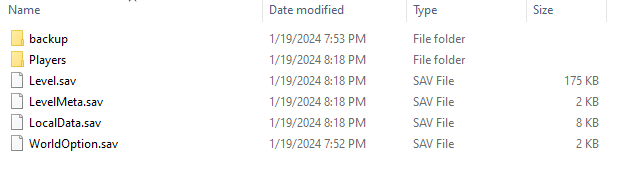
There is currently no way of telling which world name is what UUID. You can
use Date Modified in your File Explorer give you a clue on what singleplayer
game is the one you want to upload
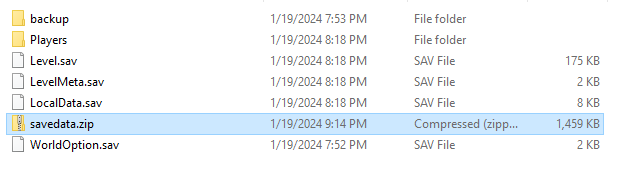
Zip up the contents of the folder and upload it to your server
Multiplayer Server
Configuration File
Find your PalWorldSettings.ini file on your old server and save it to your computer. It should be in a folder path similar to:
- Windows Server
steamapps\common\PalServer\Pal\Saved\Config\WindowsServer\PalWorldSettings.ini
- Linux Server
steamapps/common/PalServer/Pal/Saved/Config/LinuxServer/PalWorldSettings.ini
World Save File
Find and download the entire save folder for your server.
- File Path:
steamapps\common\PalServer\Pal\Saved\SaveGames\0\ - Finding the Save: The world save is identified as a long alphanumeric string such as:
0919573D7343492D9082C3D505AFEE54
Uploading Your World
- Go to the AleForge Panel
- Start your server.
- Once your server has gone online, stop it. This is used to generate your server’s
UUIDfor the save folder. - Open the Startup page and change your server settings to match your
PalWorldSettings.inifile - Head to
/home/container/Pal/Saved/SaveGames/0 - There should be an existing folder in this directory with a name consisting of letters and numbers. Delete this folder.
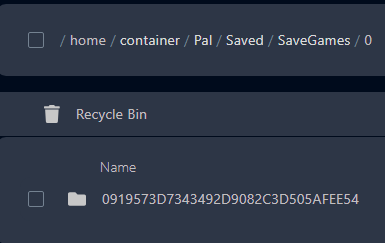
- Upload your save file here or upload using SFTP
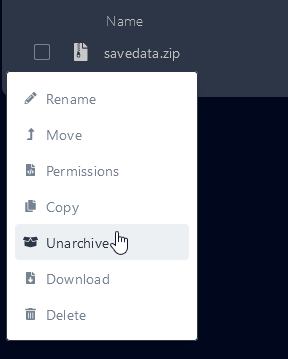
- Right click on your
.zipfile and selectUnarchiveif you uploaded a zip
- Open the GameUserSettings.ini at
/home/container/Pal/Saved/Config/LinuxServer/GameUserSettings.ini - Change the
DedicatedServerName=to match your world save folderuuid(the long alphanumeric string).
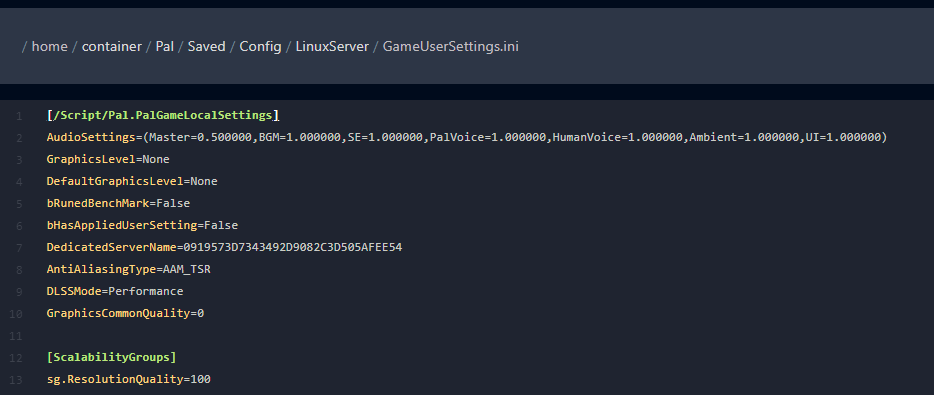
- Go to the
Consolepage, start your server, and enjoy using your uploaded world!
Migrating Player Data
Experimental: Use at your own Risk
- Have the person running the server create their character and join the game on the new server.
- Have them log out.
- Go to
Pal/Saved/Config/GameUserSettings.iniand changeDedicatedServerNameto your old server ID - For the new server, replace the contents of
Pal/Saved/SaveGames/0/{NewServerId}/withPal/Saved/SaveGames/0/{OldServerId}/on the old server. - Rename
{NewServerId}to your old server ID set in step 3 - If their old belongings still aren’t associated with them, on the new server replace
Pal/Saved/SaveGames/0/{NewServerID}/Players/{TheirPlayerId}.savwithPal/Saved/SaveGames/0/{OldServerID}/Players/{TheirPlayerId}.sav- They can easily identify what ID is there’s, as it should be the one that was most recently updated within
Pal/Saved/SaveGames/0/{NewServerID}/Players/
- They can easily identify what ID is there’s, as it should be the one that was most recently updated within
- If their (or any other players) map and waypoints aren’t showing up:
- Have them go to
C:\Users\{user_name_here}\AppData\Local\Pal\Saved\SaveGames\76561197968025212\{NewServerID}and copy the contents to a backup folder. - Overwrite the contents of
C:\Users\{user_name_here}\AppData\Local\Pal\Saved\SaveGames\76561197968025212\{NewServerID}withC:\Users\{user_name_here}\AppData\Local\Pal\Saved\SaveGames\76561197968025212\{OldServerID}.
- Have them go to