

How do I connect to my server using SFTP?
If your SFTP password isn ‘t working, please follow these instructions.
What is SFTP?
SSH File Transfer Protocol (SFTP) is a networking protocol designed to securely transfer and upload files to your server. Using an SFTP connection is necessary if you want to upload files over 1GB in size.
To connect to your server using SFTP, you will first need to download an SFTP Client , such as the free [FileZilla](https://filezilla- project.org/download.php?type=client).
Connecting to your server using FileZilla
- Open FileZilla
- At the top of the Window, you’ll find fields named
Host,Username,Password, andPort

- To connect to your server, you’ll have to fill out these fields with information from the
Settingssection of the AleForge Panel - Fill out the
Hostin FileZilla withServer AddressfromSettingsin the Panel. Make sure to include the SFTP:// before your node hostname. It would look likeSFTP://nodename.aleforge.net - Remove
:2022fromHostand type2022under port, like so.

- Fill out
Usernamewith theUsernameprovided in theSettingssection of the Panel. - Fill out
Passwordwith your password to sign in to the panel. If you use the Login With AleForge Button, see the note below - Click
Quickconnect - You will now be connected to your server VIA SFTP. You can now drag files between the left panel (files on your computer) to the right panel (files on your server).
Why isn’t my password working?
If you use the Login With AleForge Button to sign in to the panel, you will need to set a password for the panel. Here is how you can do that.
Note that setting a password using this method will not change your billing password.
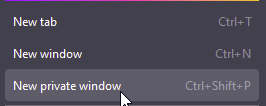
- Open a tab in your browser in Incognito Mode
- Go to https://panel.aleforge.net/
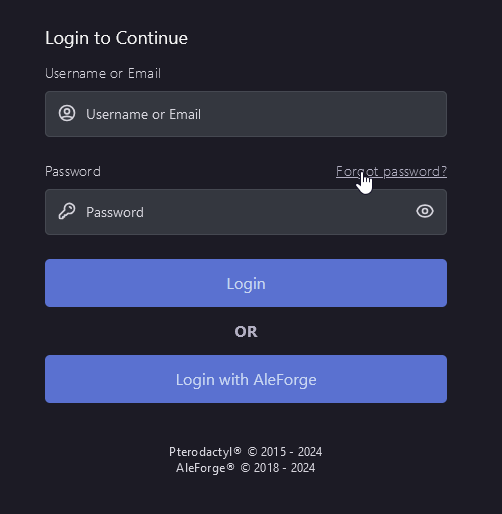
- Select
Forgot Password?
- Follow the link sent to your email and reset your password.
- Now you can connect to your server with the password you have set.