

How do I change how my Rust server appears in the Server Browser?
Quick Links
- Using the Blacksmith’s Portal
- Self-Hosting/Other Providers
Rust has a robust server browser that lets you customize your server with your own images. This can help players know what they’re in for when they connect to your server.
This guide will show you how to change items like the server description, header image, add tags, and the website URL for your server.
Changing the Server Browser Settings
Using Blacksmith’s Portal
- Open the Blacksmith’s Portal
- Go to
Startup - Here you can find all the settings to customize how your server appears in the browser
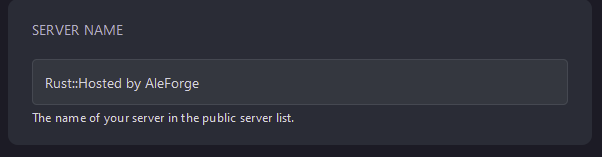
Server Namechanges the listed name of your server
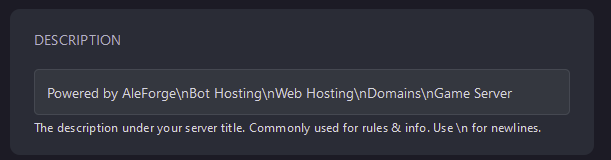
Descriptionchanges the description of your server. You can separate lines with \n to cause the text after it to appear on a new line.
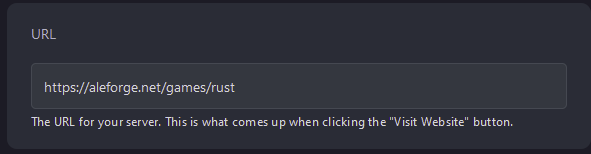
URLallows you to configure what link theVisit Websitebutton redirects you to.
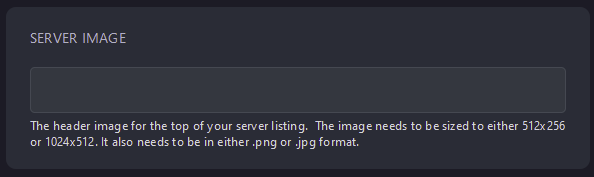
Server Imagelets you input a link for the header image for the top of your server listing. Please note that this image needs to specifically be sized at 512x256 or 1024x512 and be in the.pngor.jpgformat
Server Logolets you input a link to an image for the logo if you are using the Rust+ app
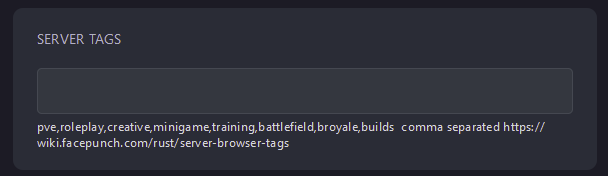
Server TagsAllows you to set a comma separated list of tags for your server. For more information on what tags are allowed, see the list of tags here.
- Once you have added what you wanted to configure, restart your server and the changes will apply.
Self-Hosting/Other Providers
- For a self-hosted or a server on other providers, you can add each of these features with an additional startup command
- Locate where your Rust server is installed
- Open the script that starts the server
- To change the host name, add
+server.hostname \"<myservername>\" - To change the description, add
+server.description \"<mydescription>"
You can insert \n between sentences to place one on a new line.
- To change what URL the
Visit Websitebutton visits, add+server.url \"<yoururlhere>\" - To change the header image, add
+server.headerimage \"<linktoyourimagehere>\"
Note that this image needs to specifically be sized at 512x256 or 1024x512 and
be in the .png or .jpg format
- To change the server logo, add
+server.logoimage \"<linktoyourimagehere\" - To add tags, add
+server.tags \"<commaseparatedlistoftags\"
For more information on what tags are allowed, see the list of tags here.
- Once you have added what you wanted to configure, restart your server and the changes will apply.
Closing
Now, your server will appear with your own images and text, allowing you to advertise it to the right audience!
Get your own super-powered and affordable Rust server today!