

How to Add Mods to a Project Zomboid Server
Project Zomboid’s Build 42 Multiplayer is unstable. This means that it is constantly being patched and updated. If a mod says it is compatible with the B42 unstable branch, it may have been broken due to a recent patch. Use mods at your own risk on unstable
Project Zomboid has Steam Workshop integration, allowing any mods to be added to your server. You will find various kinds of mods, from adding new items, fixing quality-of-life issues, or even adding new parts to the map. Adding the workshop mods to your server can be confusing, so we created this AleForge guide to walk you through the process.
Find the Mods to Install
- Open the Project Zomboid Workshop.
- Search all the mods to find the mod(s) you want to add to your server. Making a list on notepad may help.
- In the mod description, the mod author will have put the
Mod IDand theWorkshop ID.
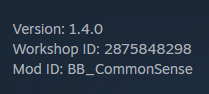
- Note these numbers down because you will need these to add the mod to your server.
Once you have gathered all the Mod IDs and Workshop IDs for each mod you want to install, you can start the next section to install the mods on your server.
Installing the Mods
- Navigate to your server within the AleForge Panel.
- Open the
Consolefor your Project Zomboid server and ensure it is stopped. - Open the
File Manager - Navigate to your World Config file. It will be stored on this path:
.cache/Server/dedicated.ini. dedicated is the default name of the world we generate. If you changed theSERVER NAMEon the startup page replace dedicated with your custom name. - Within your config file find
Mods=and enter eachMod IDseparated with a semicolon. No semicolon is required on the last mod.

- Next, find the
WorkshopItems=section and enter eachWorkshop IDseparated with a semicolon. No semicolon is required on the last mod.

- Once done, click
Save Content. - Open the
Consolepage and Start your server.
Common Problems
My mods are not loading on the server:
- Make sure all the ID numbers have been entered correctly
- Make sure the semicolons are set correctly in the config file
- Make sure you are subscribed to the mods on your own computer
One mod isn’t loading:
- Double check the ID numbers are correct and, if necessary, are in the correct order.
- Make sure the mod isn’t broken or outdated for the current version of Project Zomboid
The workshop item version is different than the servers:
- This error happens when the server’s mods update but the mods installed on your computer have not. If it does not automatically update try unsubscribing and resubscribing to the mod from the mod page.