

How do I add a custom map to my Rust server?
Quick Links
- Using AleForge’s Blacksmith’s Portal
- Self-Hosting/Other Providers
This guide will walk you through adding a custom map to your server. You’ll need Oxide installed on your server to add a custom map. By default, all AleForge servers come with Oxide installed, but if you’re self-hosting or on another host, you can check out our installation guide [here](https://help.aleforge.net/article/687-how-to-install-oxide-or-carbon- on-your-rust-server).
Adding a custom map to your server
Using Blacksmith’s Portal
- First, we’ll need to download the RustEdit Oxide extension located here
- Next, open the Blacksmith’s Portal
- Stop your server
- Open
Files - Upload
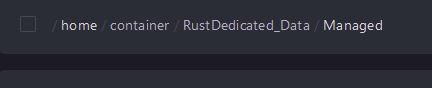
Oxide.Ext.RustEdit.dllto/RustDedicated_Data/Managed
- Go to
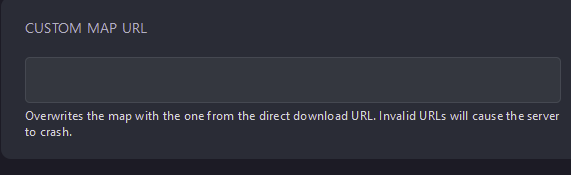
Startup - Look for
Custom Map URLand paste a link to the direct download of your custom map
- Start your server and it will download and load your custom map
Self-Hosting/Other Providers
- First, we’ll need to download the RustEdit Oxide extension located here
- Stop your server
- Open
Files - Upload
Oxide.Ext.RustEdit.dllto/RustDedicated_Data/Managed - Navigate to your
server.cfgfile - Add
levelurl "<directdownloadlinktoyourmap>"line to yourserver.cfg - Save your changes
- Start your server and it will download and load your custom map
Closing
Now your server will load with the custom map you set!
Get your own super powered and affordable Rust server today!