

How do I add an Admin to my Abiotic Factor server?
Quick Links
- Using AleForge’s Blacksmith’s Portal
- Self-Hosting/Other Providers
Abiotic Factor allows you to set players as admin on your server, allowing them to access administrative features in game
Adding an Admin to your server
Make sure your server has been started at least once for it to generate the
appropriate config files for your server
Using Blacksmith’s Portal
- First, you’ll need to get the SteamID of the player you want to make an admin. You can do this by going to the Steam profile of the player and copying the link. The SteamID will be the long string of numbers at the end of the link

- Next, go to the Blacksmith’s Portal
- Go to
Files - Open
Config Files - Select the
Admin.inifile - Paste the SteamID of the player into one of the
Moderatorboxes
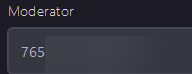
- If you only have one or two admins you’d like to add, you can add them here. If you’d like to add more than that, select
View Fileand add them on another line - Restart your server and the set player will now be an admin.
Self-Hosting/Other Providers
- First, you’ll need to get the SteamID of the player you want to make an admin. You can do this by going to the Steam profile of the player and copying the link. The SteamID will be the long string of numbers at the end of the link
- Next, go to the install folder of the Abiotic Factor server
- Open
AbioticFactor/Saved/SaveGames/Server/Admin.ini - Look for
Moderator= - Paste the SteamID after this line, so it looks like
Moderator=<SteamID> - If you only have one or two admins you’d like to add, you can add them here. If you’d like to add more than that, add an additional
Moderator=line - Restart your server and the set player will now be an admin.
Closing
Now you’ve set admins on your server who can moderate the playing experience!
Get your own super powered and affordable Abiotic Factor server today!