

How do I add a Resource Pack to my Minecraft Bedrock Server?
Resource packs allow you to customize textures, font styles, sounds, models, interface, and other things for Minecraft. This is also possible with servers so that everyone who joins your server will be able to use your custom resource pack.
You can create your resource pack or use the available ones shared on Minecraft sites like Planet Minecraft and the [Minecraft Forum](https://www.minecraftforum.net/forums/mapping-and-modding- java-edition/resource-packs).
Installing a Resource Pack
There are two methods of installing a resource pack, a less technical way where you install it to a singleplayer world and upload it to your server, and a more technical one, where you install it directly to your server.
Installing a Resource Pack to your world
- Once you have the resource pack you’d like downloaded to your computer, double click the file, and it will automatically install itself to your Bedrock edition of Minecraft
- Open Minecraft Bedrock
- Under your world, hit the pencil icon to edit your world
- Scroll down and select
Resource Packs

- Click
Available. Here you’ll see all of the currently installed Resource Packs you can add to your world
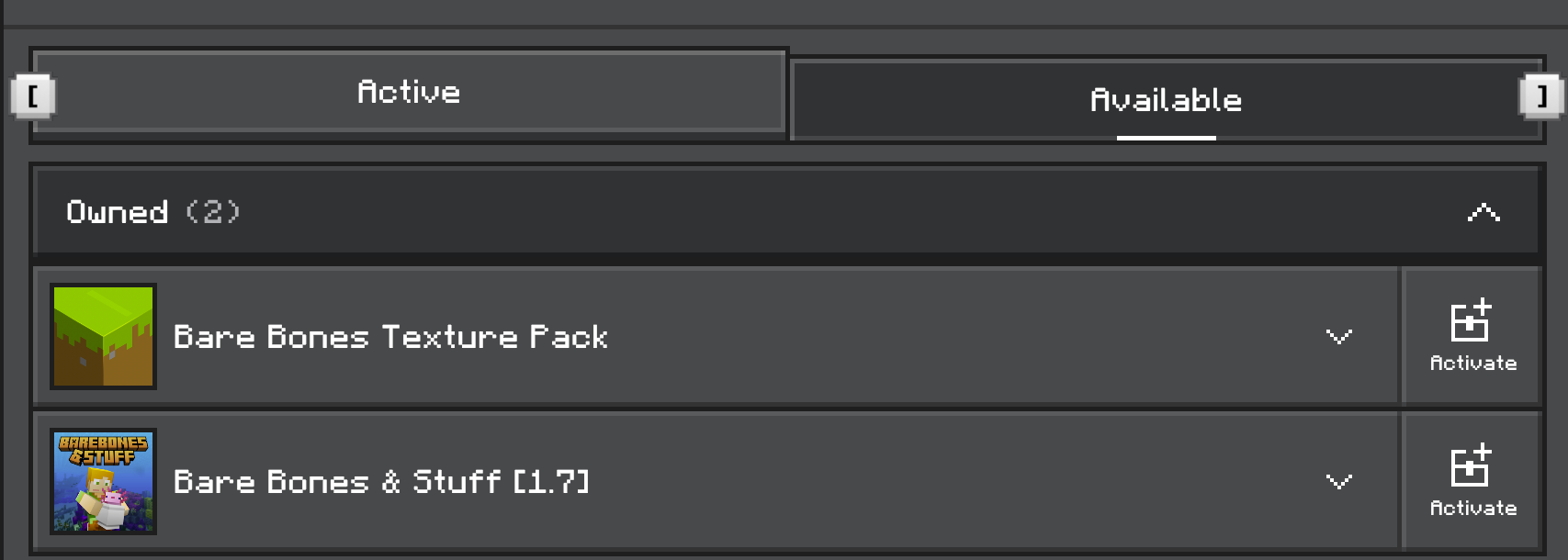
- Activate the packs you’d like to use and scroll back to
General - Under File Management select
Export Worldand save your world as an.mcworldfile on your computer. We’ll need this later.
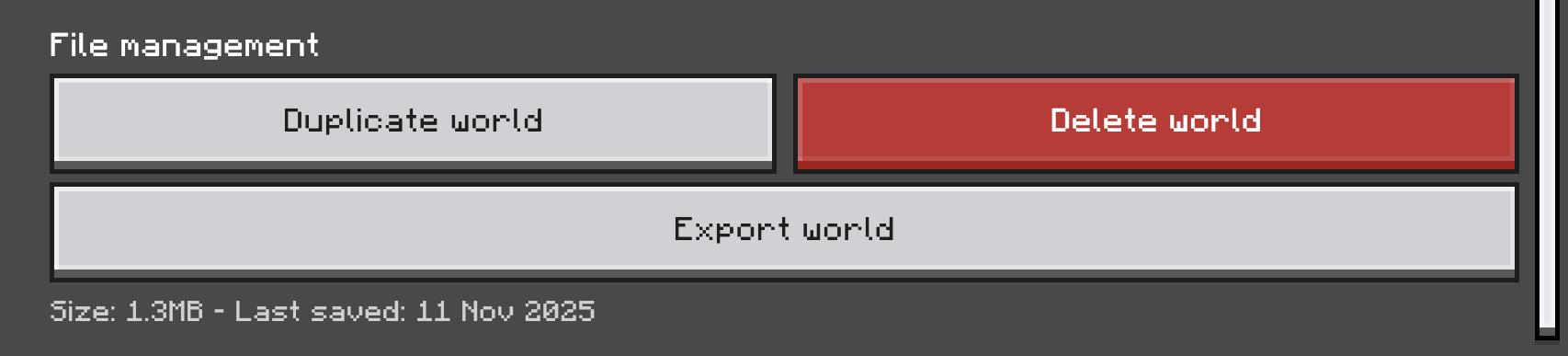
- We can now move on to uploading the world
Uploading the world to your server
- Open the Blacksmith’s Portal
- Go to
Files - Open
worlds. If you do not see aworldsfolder, you can manually create one with theCreate Directorybutton - Inside
worlds, create a folder with theCreate Directorybutton and name it. e.g.myworld
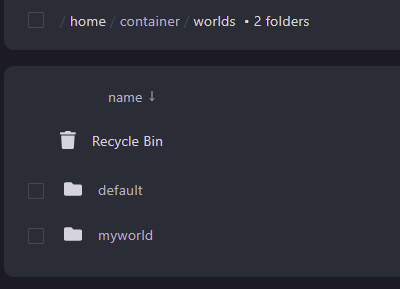
-
Open your created folder
-
Upload your exported
.mcworldfile -
Right click on your uploaded file and select
Unarchive -
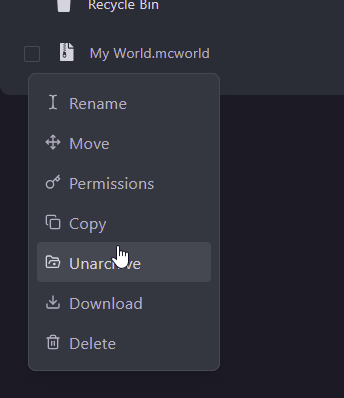
-
We’re done! Now we can begin the same process with the resource packs.
Uploading Resource Packs to your server
- Open the Blacksmith’s Portal
- Go to
Files - Open
development_resource_packs. If you don’t see it, you can create it with theCreate Directorybutton - Within this folder, create a new folder with the name of the resource pack
- On your computer, locate the
.mcpackfile you downloaded and upload it to this newly created folder - Right click on it select
Unarchive
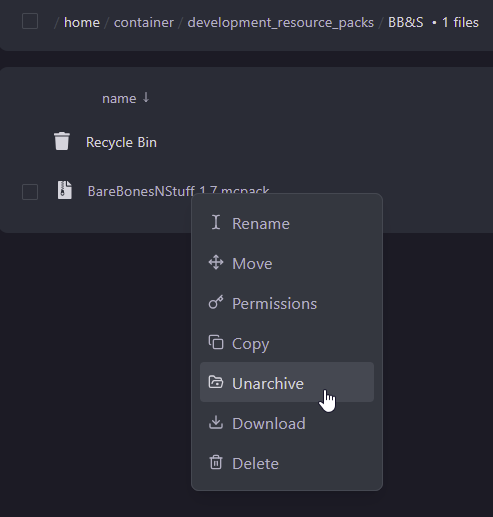
- Repeat this for any additional resource packs.
- If you’re uploading a world with these already activated, restart your server and your resource packs will now appear
Manually Installing Resource Packs to an Existing World
To install resource packs to an existing world, we’ll need to first upload the resource packs to our server. Once uploaded, we can manually install them to an existing world.
- Each of your uploaded resource packs will have a file named
manifest.jsonwithin the folder they were uploaded in. - Open the
manifest.jsonand note theUUIDandVersionkeys under theheaderobject as we will need these later.
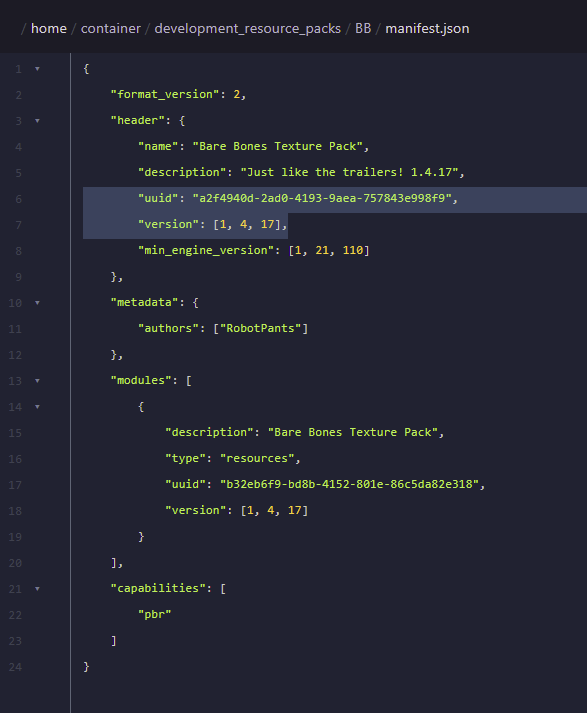
- Go to your worlds folder. e.g.
worlds/myworld - Open
world_resource_packs.json, if you don’t see one, create one with theNew Filebutton - The file should have the following contents
[{
"pack_id" : "uuid pasted from resource pack",
"version" : version pasted from resource pack
},
{
"pack_id" : "2b8ba764-98e1-4fed-80b4-ed8286ea6e48",
"subpack" : "BareBonesNStuff",
"version" : [ 1, 7, 0 ]
}
]6. For multiple resource packs, make sure that there is a comma after each } with the exception of the last entry. e.g.
[
{
	"pack_id" : "a2f4940d-2ad0-4193-9aea-757843e998f9",
	"version" : [ 1, 4, 17 ]
},

{
	"pack_id" : "2b8ba764-98e1-4fed-80b4-ed8286ea6e48",
	"version" : [ 1, 7, 0 ]
}
]
7. Save the content and restart your server.