

How to install an older version of Minecraft on your server
AleForge servers ship with a custom Java binary that works with Minecraft versions all the way from Alpha to modern versions of Minecraft. This means that you can easily run your server on whichever version of Minecraft you’d like.
Older versions of Minecraft do not have the same security and authentication servers in place which means that your server may be vulnerable to hackers. [Always remember to keep a good backup.](https://help.aleforge.net/article/239-how-to-setup-scheduled- restarts)
Installing An Older Version
To install an older version, we’ll need to get the correct server.jar file
from the Minecraft Wiki
- Go to the Minecraft Wiki page for Versions
- Find and click the version you wish to play on
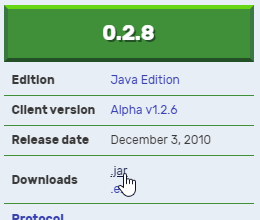
- For Alpha versions, select the server version and it will redirect you to the page for that version.
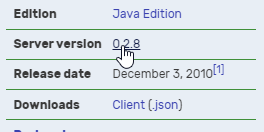
Download the .jar version
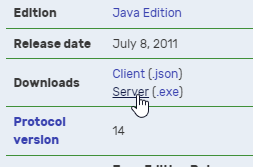
- For Beta versions, select the
Server (.exe)download
Uploading your .jar to the server
Now that you have your .jar , we can upload it to the panel.
- Go to the
AleForge Panel - Make a backups from the
Backupstab - Wipe everything in
File Manager - Upload the
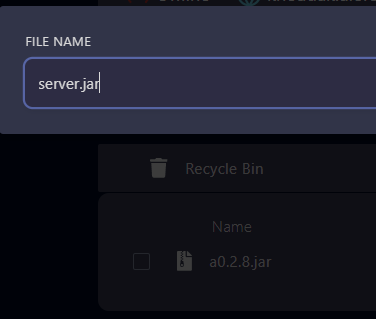
.jardownloaded from the Minecraft Wiki - Rename your uploaded
.jartoserver.jar
- Start your server to get it to generate the files it needs and then stop it
- Go to Server Properties and ensure
Online-Modeis set to false
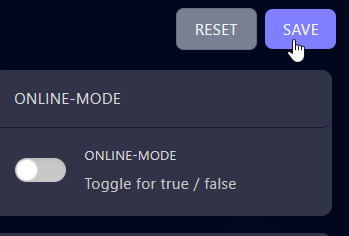
- Start your server and connect using the same version of Minecraft on your client
Alpha versions of Minecraft will simply display “Starting” when they are fully booted. This is due to the older version of Minecraft having a different console output. Do not worry though as your server is still connectable.