

How do I connect to my Enshrouded server?
In order to join an Enshrouded game server, you will need to direct connect using the address or use the server title listed on the panel.
An address is usually in the format IP:Port and can be found from your AleForge control panel game page as such:
Join Using the Server Browser
- Load up your game and click Play.
- Select Join on the next page
- Let the list of servers load.
- Click on the Search for Server Name(this is set on the startup page of the panel)
- Type in the server name that you have listed on the panel
- Your server should now show up to join.
Join Using the Steam Server Browser
- Go to the AleForge Panel
- Look for your IP address. This should look something like “va1.aleforge.net:12345”.
- Go to
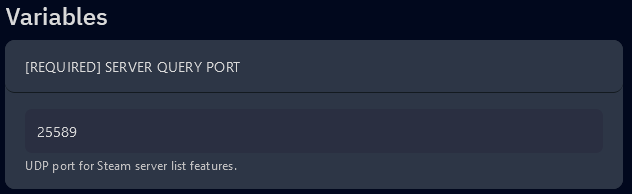
Startup - Take note of your games Query Port. You will need to replace the numbers after your IP address with this.
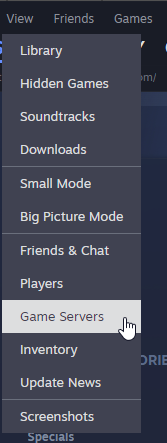
- Go to your Steam Library section and click the View button in the screenshot below. Once the drop-down opens, you can click on the Servers option.
- After you click on
Game Servers, you will be brought to a new pop-up window. SelectFavoritesThis is the Steam Server Favorites list, and you can use it to quickly connect to any server for which you have the hostname and port number.
Click the Plus Sign button at the bottom to add your server to this list.
- Once you click that button, you will see one more pop-up window. In the text field below, you will want to paste the hostname and replace the port with the
Query PortfromStartup
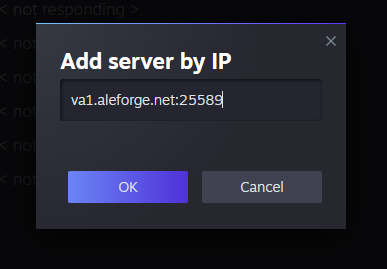
Then click on the OK button. Doing so will close this window and return you to the favorites window.
- Once you are back to the Favorites window, click on the server you just added and then click on the
Connectbutton. If it requires a password, it will ask you to enter it.