

How do I configure my V Rising Server?
Quick Links
- Using AleForge’s Blacksmith’s Portal
- Self-Hosting/Other Providers
If you want to customize your server settings, you’ve come to the right place. In this article, we’ll walk you through all the steps to change server settings in V Rising. This will allow you to tailor your gaming experience to your preferences. Whether you want to adjust server parameters or enable specific features, this guide will provide the necessary insights. Let’s dive in!
Changing Game Settings
Using Blacksmith’s Portal
Many frequently accessed game settings are located in the Startup section of the panel, making it a breeze to edit them quickly and efficiently.
- Open the Blacksmith’s Portal
- Stop your server
- Go to Startup
- Change your desired variables to the desired value
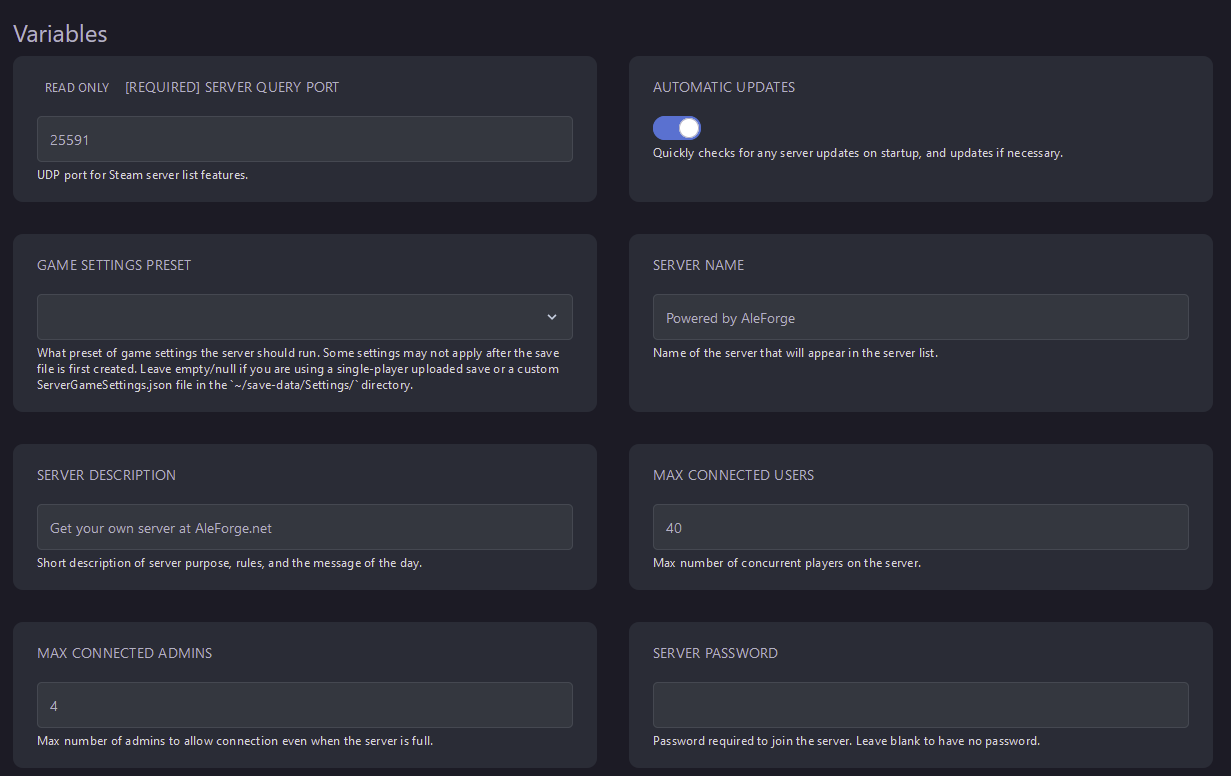
- Start your server
If you’re looking for the more in-depth game settings, you can directly edit the .json file that contains them.
- Open the Blacksmith’s Portal
- Open
Files - Click
Config Files - The settings on display here are overwritten by what is set in Startup. To view more settings, click
View File - Use our file editor to edit your desired settings
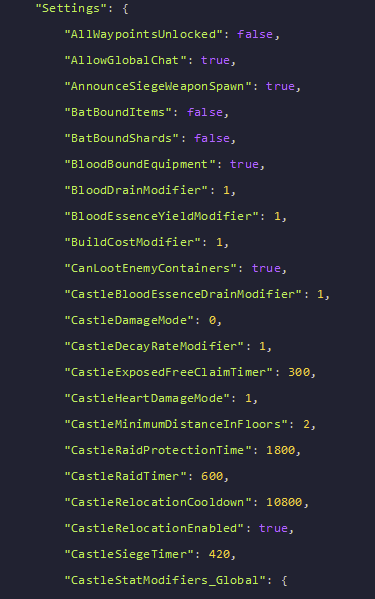
- Save your changes
- Start your server
Self-Hosting/Other Providers
- Go to the install directory for your V Rising server
- Navigate to
save-data/Settings - Open
ServerGameSettings.json - Use your preferred file editor to change your settings
- Save your changes
- Start your server
Closing
With the countless settings available in V Rising, there are infinite ways to customize your V Rising server!
Get your own super-powered and affordable V Rising server today!