

How To Setup Scheduled Restarts
To automate restarts for your server, we’ll have to create a schedule and notify users of the restart.
Creating A Schedule
- Go to the AleForge Panel
- Go to
Schedules - Click
Create Schedule
Schedules use the Cronjob syntax. This is for determining when your backup will happen in UTC. Here is an example schedule that will run once a day.
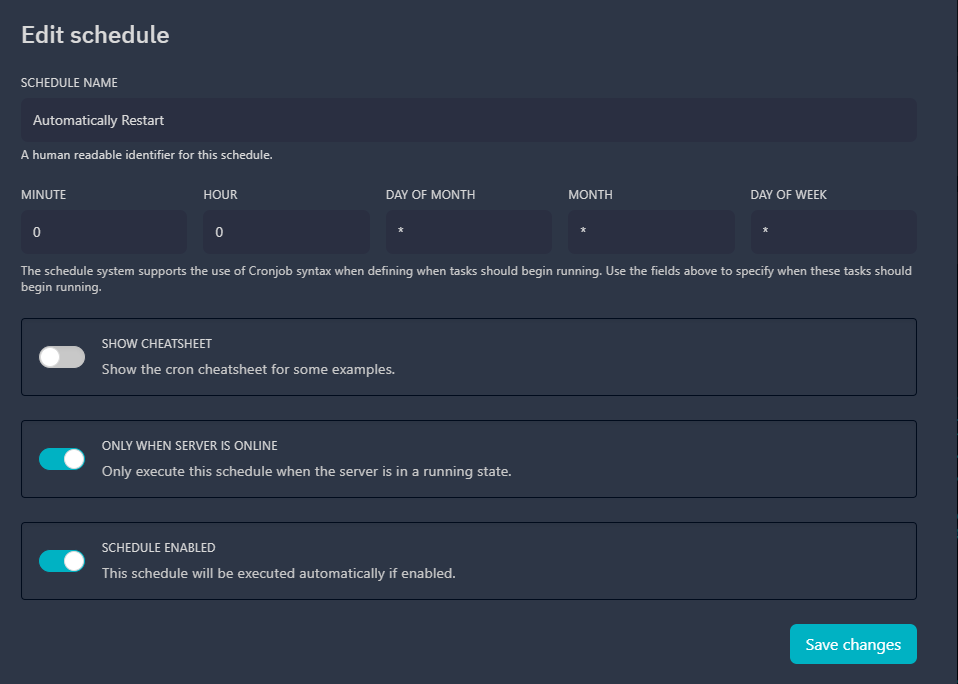 Click on the image to
find out more about Cronjobs
Click on the image to
find out more about Cronjobs
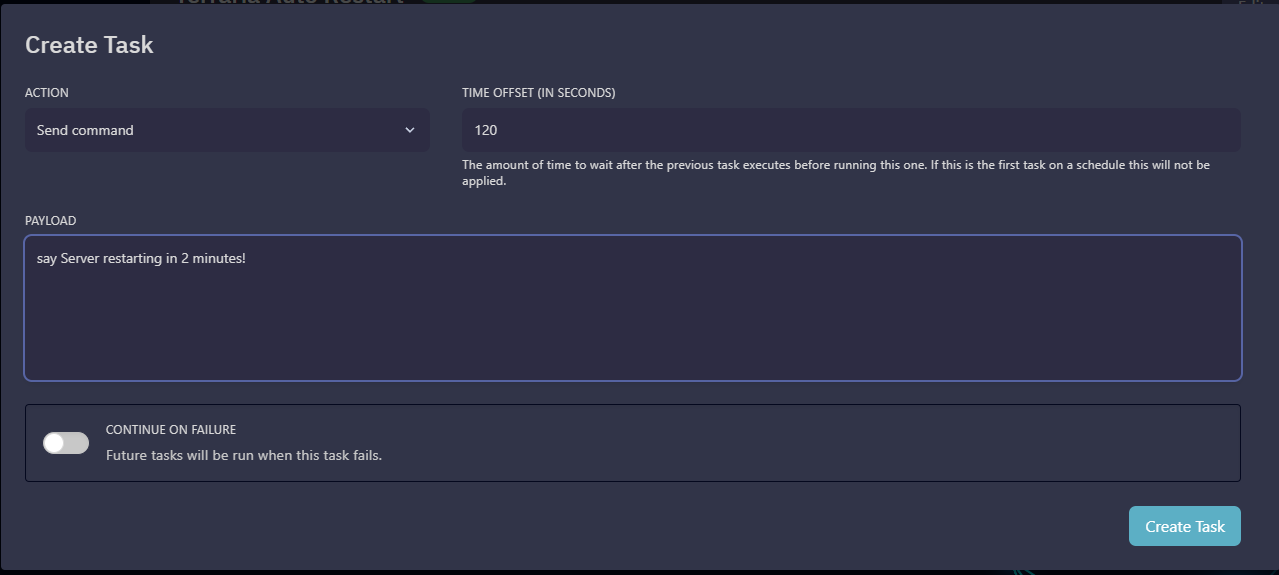
Alerting Your Users of the Restart
Once your Schedule is created, click New Task . On the drop down select
Send Command
As the payload, you will have to send the console command for your game on the server. Here is a list with some examples.
| Game | Command | Example |
|---|---|---|
| Palworld | broadcast | broadcast Server_Restarting_in_X_minutes |
| Minecraft | say | say Server Restarting in X minutes! |
| Project Zomboid | servermsg | servermsg "Server Restarting in X Minutes!" |
| Terraria | say | say Server Restarting in X minutes! |
Creating the Restart Task
Once you have alerted your users that you will be restarting soon, you can add
the Restart action to your schedule. Click New Task and select Send Power Action -> Restart from the dropdown
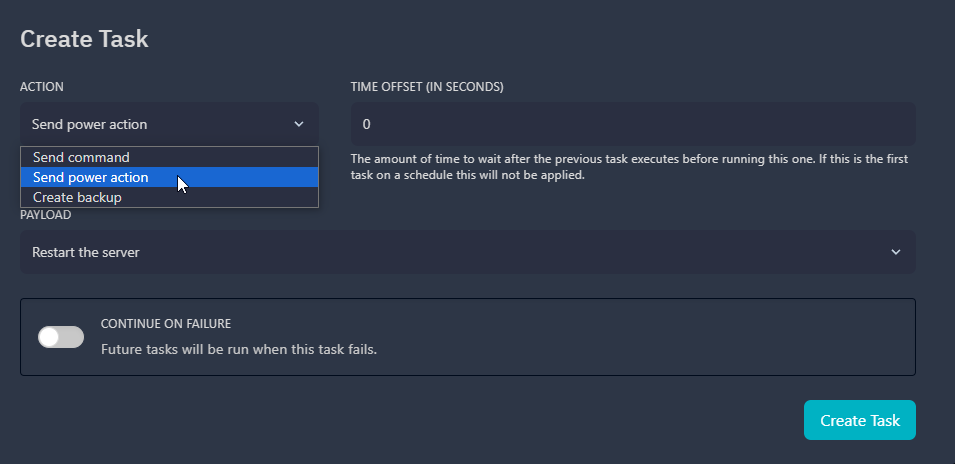
Now click Create Task . Your server will now automatically reboot on the
schedule you set. You can check when your server will restart at the top of
the page.
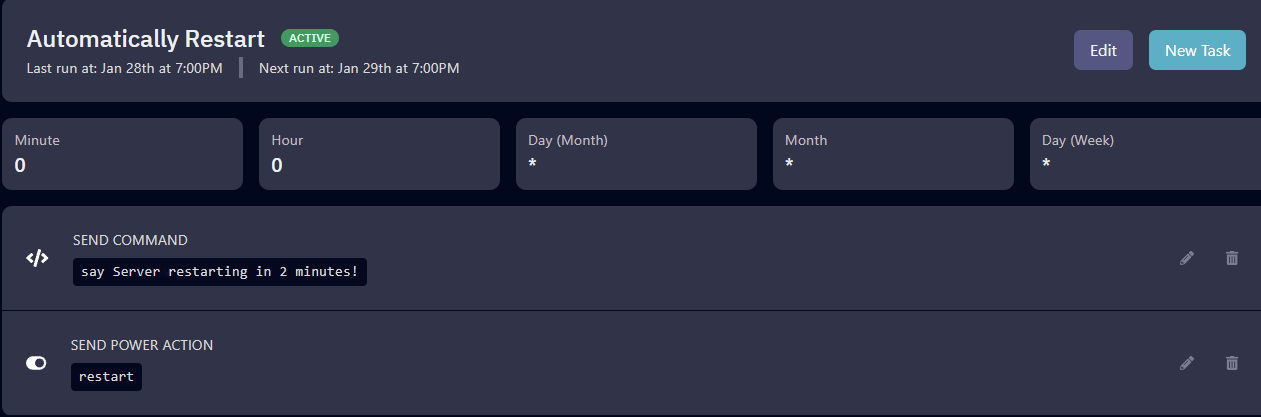
You will want to set the Time offset in seconds to the amount of minutes
the message warns of. e.g. if the server is restarting in 5 minutes, set it to
300