

How to reset a Project Zomboid server
There are two types of resets you can perform on a Project Zomboid server, a hard reset and a soft reset.
Hard Reset - Wipes all map data and player data starting completely from scratch
Soft Reset - Wipes all map data but keeps player data, meaning your character stays.
Here’s how you can apply both to your server
Hard-resetting your server
- Go to the AleForge Panel
- Stop your server
- Go to
Startupand take note ofInternal Save Name
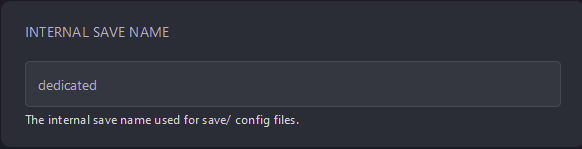
- Open
.cache/Saves/Multiplayer - Delete the folder that shares the name of your
Internal Save Name
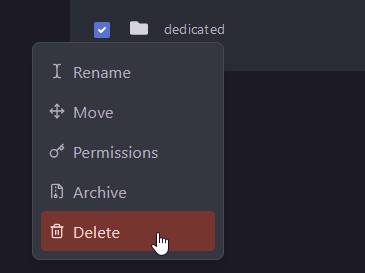
- Start your server
Upon starting your server, the map will regenerate and you will be prompted to create new characters.
Soft-resetting your server
Soft-resetting your server is a more complicated process and [requires that you connect to your server using SFTP credentials](https://help.aleforge.net/article/172-how-do-i-connect-to-my- server-using-sftp)
- Open the AleForge Panel
- Stop your server
- Go to
Startupand take note of yourInternal Save Name
-
Navigate to
.cache/Server/Saves/Multiplayer -
Open the folder that shares the name of your
Internal Save Name -
Use CTRL+A to select all files in the folder
-
IMPORTANT Omit players.db by CTRL+Clicking it
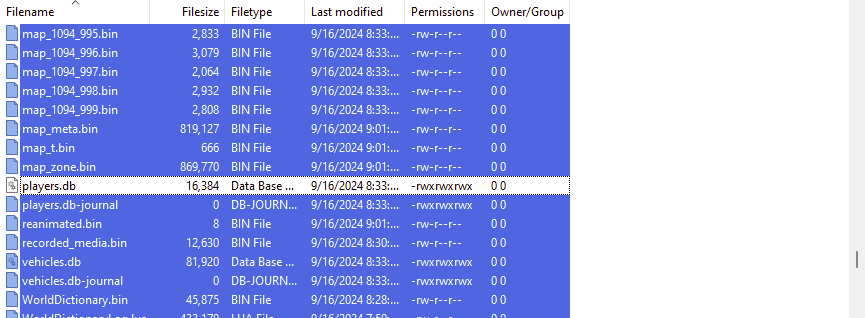
- Delete all of the other files. This process may take some time depending on the size of your map
- Start your server
Upon starting your server, the map will regenerate.