

How do I install mods on my Palworld server?
Quick Links
Installing WIth Steam Workshop
- Using AleForge’s Blacksmith’s Portal
- Self-Hosting/Other Providers
Installing With UE4SS
- Using AleForge’s Blacksmith’s Portal
- Self-Hosting/Other Providers
As with any game, mods can cause crashes and higher resource usage for your server. Remember that this is a risk you take when installing mods
Installing mods on Palworld is dessigned to be as easy as possible. Here’s how you can do it with your AleForge server. Mods can be found from a variety of sources. For this guide, we’ll be using Nexus Mods to source our mods. Remember that some mods require you to install them on both client and server. As always, check the mod documentation if you have issues installing it.
Using the Blacksmith’s Portal (Steam Workshop)
- Go to the AleForge Panel
- Select your server and ensure it is offline
- Go to
Settingsand use Game Swap to change your Palworld server toPalworld Proton - Reinstall your server
Installing Mods
- Go to the Steam Workshop for Palworld
- Download each of the Workshop mods you’d like to install
- Go to the Steam directory where Workshop mods are downloaded by default, e.g.
Steam\\steamapps\workshop\content\1623730 - You will see a bunch of folders with numbers for names. These are your mods
- Select all of these folders, right click and select
Send To -> Compress To Zip - Name the file that is created
mods.zip
Now we’re ready to upload these mods to your server.
Uploading Your Mods
- Go to the Blacksmith’s Portal
- Go to Files and create a directory called
Modswith theCreate Directorybutton - Open this directory, create another directory called
Workshop - Upload your created
mods.zipfile here - Right click on the folder and select
Uncompress - Once done, start your server and it will be started with mods.
Self-Hosting/Other Providers (Steam Workshop)
Ensure your server is offline and that you are using a Windows version of your server
Installing Mods
- Go to the Steam Workshop for Palworld
- Download each of the Workshop mods you’d like to install
- Go to the Steam directory where Workshop mods are downloaded by default, e.g.
Steam\\steamapps\workshop\content\1623730 - You will see a bunch of folders with numbers for names. These are your mods
- Copy these folders
Now we’re ready to add these mods to your server.
Uploading Your Mods
- Go to your server files and create a directory called
Mods - Open this directory, create another directory called
Workshop - Paste your copied folders here
- Once done, start your server and it will be started with mods.
Installing Mods with UE4SS
Using Blacksmith’s Portal
Installing UE4SS
- Go to the AleForge Panel
- Select your server
- Go to
Settingsand use Game Swap to change your Palworld server toPalworld Proton - Reinstall your server
Our server now includes UE4SS, the mod loader the Palworld community uses to load mods into the game.
Installing Mods
**Not all mods are installed the same way, if you ‘re not sure how to
install it, remember to check the mod page for exact instructions on where to put mods**
- Download your mods. For this guide, we’ll be using CreativeMenu by Okaetsu
- Manually download the .zip file for Steam and Dedicated servers
- Upload this file to
/home/containerin the Files tab on your server - Right-click the uploaded file and select
Unarchive
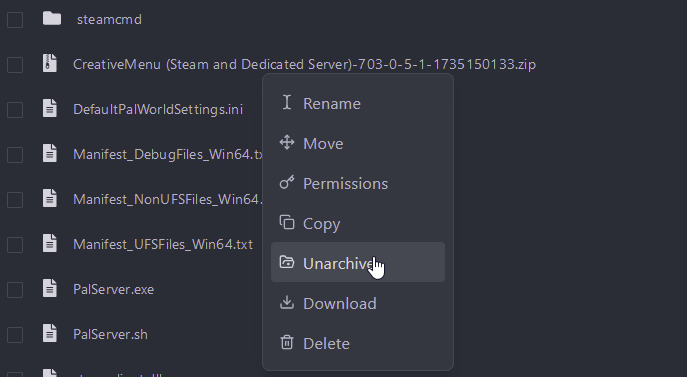
- Now, you can start your server with your mod installed!
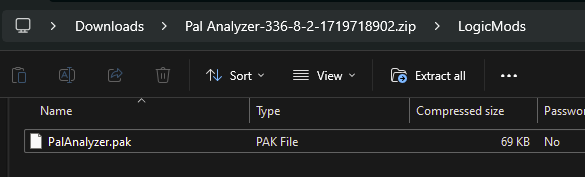
If your mod comes downloaded as a folder and a .pak file, you can simply
upload the .pak file to home/container/Pal/Content/Paks/LogicMods
Self-Hosting/Other Providers
Installing UE4SS
- Download the latest version of UE4SS
- Find your dedicated server folder
- Move your downloaded
.zipof UE4SS toPalServer\Pal\Binaries\Win64 - Extract UE4SS
- UE4SS will now be installed to your dedicated server
Now, your server has UE4SS, the mod loader the Palworld community uses to load mods into the game.
Installing Mods
**Not all mods are installed the same way; if you ‘re not sure how to
install it, remember to check the mod page for exact instructions on where to put mods.**
- Download your mods. For this guide, we’ll be using CreativeMenu by Okaetsu
- Manually download the
.zipfile for Steam and Dedicated servers - Upload this file to the root directory of your Palworld Dedicated Server
- Extract the downloaded
zipfile
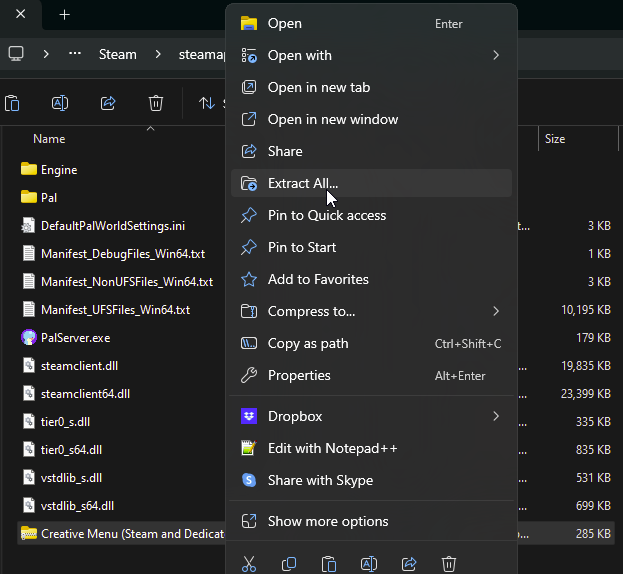
- Now, you can start your server with your mod installed!
If your mod comes downloaded as a folder and a .pak file, you can simply
install the .pak file to Pal/Content/Paks/LogicMods
Closing
Now, you can explore the hundreds of mod options available to you and your friends!
Get your own super-powered and affordable Palworld server today!