

How do I authorize my Hytale server?
Quick Links
- Using AleForge’s Blacksmith’s Portal
- Self-Hosting/Other Providers
In order to download files, Hytale requires that you authorize the server with your credentials. This guide will walk you through doing that on your AleForge server, as well as self-hosting or on another host.
Authorizing Your Server
Using the Blacksmith’s Portal
- Open the Blacksmith’s Portal
- Go to
Console - Start your server. It will print an authorization code in the console
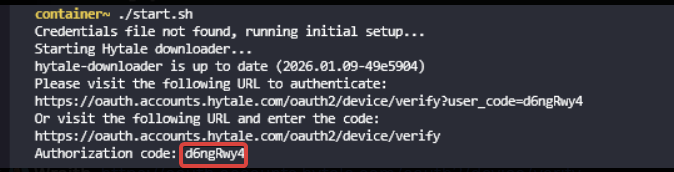
- Copy the authorization code
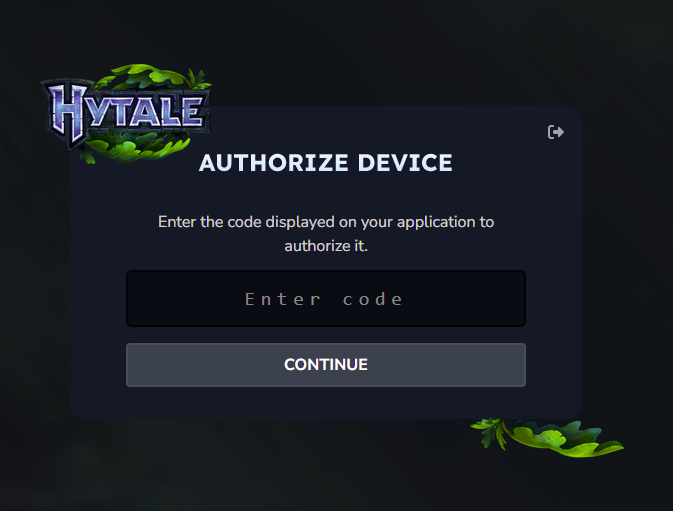
- Sign in to Hytale
- Paste the authorization code you copied
- When Hytale requests to access your account, select
Approve
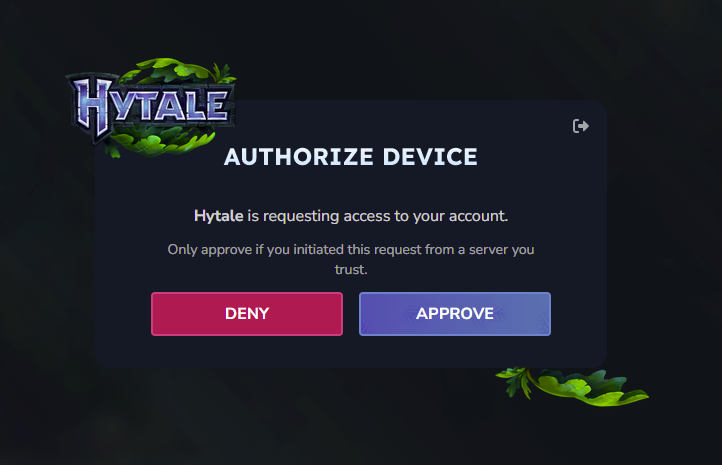
Your server will now begin downloading the files it needs.
Self-Hosting/Other Providers
- Start your server. It will print an authorization code in the console
- Copy the authorization code
- Sign in to Hytale
- Paste the authorization code you copied
- When Hytale requests to access your account, select
Approve
Your server will now begin downloading the files it needs.
Closing
Now you know how to authorize your Hytale server and start playing!
Get your own super powered and affordable Hytale server today!